Compatible with Chrome and Edge
Instruction Guide
We have a simple tutorial guide which explains the features of the software extension and what each button inside the extension does. Read our tutorial and welcome guide on how to use the extension to the fullest. Use all the features of this browser software.
If you are interested in other web extensions to install, you might wish to check out the Microsoft Bing Search with Rewards extension.
Microsoft Bing Search with Rewards Extension
It allows you to complete daily offers to get points.
Track the number of points you have currently and the rewards you can redeem with these points.
The ways to get points & get rewarded is search with Bing, browse with Microsoft Edge and shop at the Microsoft and Windows stores to earn rewards.
Sponsored Link:
Other useful extensions
Another extension which would be useful to install is the iCloud bookmarks extension.
It allows to keep your Chrome bookmarks on Windows synced up with the Safari bookmarks on your iPhone, iPad, and Mac.
iCloud will store your website bookmarks so it is accessible even on your iPhone and Mac.
Try these other two extensions and see if it will boost your daily productivity.
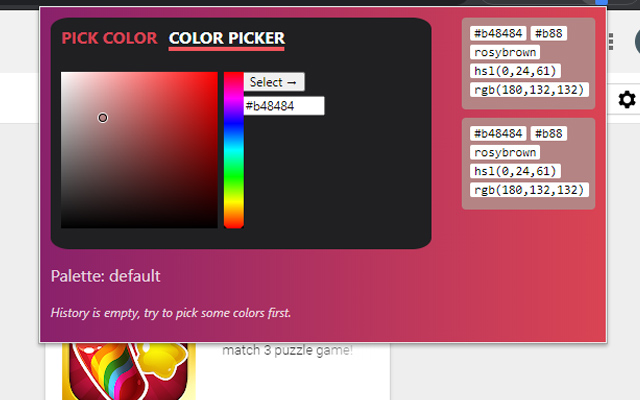
This software extension allows you to pick colors from any web pages, color picker to get pixel code, rgb value of any image on the website you're browsing.
Find the exact RGB Value of any image once you install our software extension Hex Color Picker.
To begin using the software extension Color Picker, you need to do the following
- Install the software extension
- Go to the website you wish to find the RGB Value for
- Click on our software extension at the top right corner to activate the software
- Click on the image you wish to find the RGB value for
- Our software extension will give you the specific RGB color for the pixel/image you clicked
Features:
- Allows you to pick colors from any web pages, color picker to get pixel code, rgb,…
What is a color picker?
Color picker is a graphical user interface that allows users to select colors.
A color picker can be used to choose a color from an image or from the screen, or to sample or capture a color from an application, device, or other source. Some applications support the ability to display multiple color pickers simultaneously.
Color Pickers have many uses including:
Choosing a color scheme for your website, blog, or other project
Creating graphics such as icons and logos where the exact color is needed
Picking colors for websites and apps (e.g., when designing webpages)
Color Palette
A color palette is a collection of colors that are used together in an image or illustration. The artist chooses them based on some sort of theme, such as the mood, atmosphere or style they want to create.
Color Picker Tool
The Color Picker Tool is used in programs like Photoshop and Illustrator to select individual colors within an image or illustration and copy them into the program’s window for further editing purposes.
When it comes to photo editing, there are quite a few different software options out there. Some are free, some are paid and some are very expensive. But the question remains: What's the best photo editor for you?
Here's a quick rundown of some popular desktop photo editors and their features.
Mac users: Apple has its own photo editor called Photos that comes installed on every Mac computer. It's a great tool for basic edits like cropping and adding filters, but if you want more advanced editing tools such as curves or layers, you'll need to download another app (we recommend Photoshop).
Windows users: If you're on Windows, Adobe Lightroom is one of the most popular photo editing programs out there (and it's free!). It's similar to Photos in that it organizes your photos and makes it easy to share them online; however, it also offers advanced editing tools like curves and layers so you can get creative with your photos.
Tutorial:
- Install the Extension
-
After installing the extension, click on the icon
 on the toolbar.
Sponsored Link: